


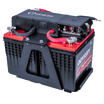
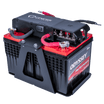
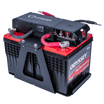
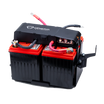

Juicebox 100 Support Center
Everything you need to go from unboxing to fully powered, in four quick steps. Your user guide, install videos, and the RedVision apps — all in one place.
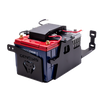
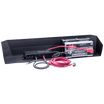
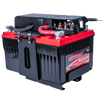
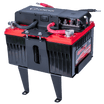
Know Your Juicebox
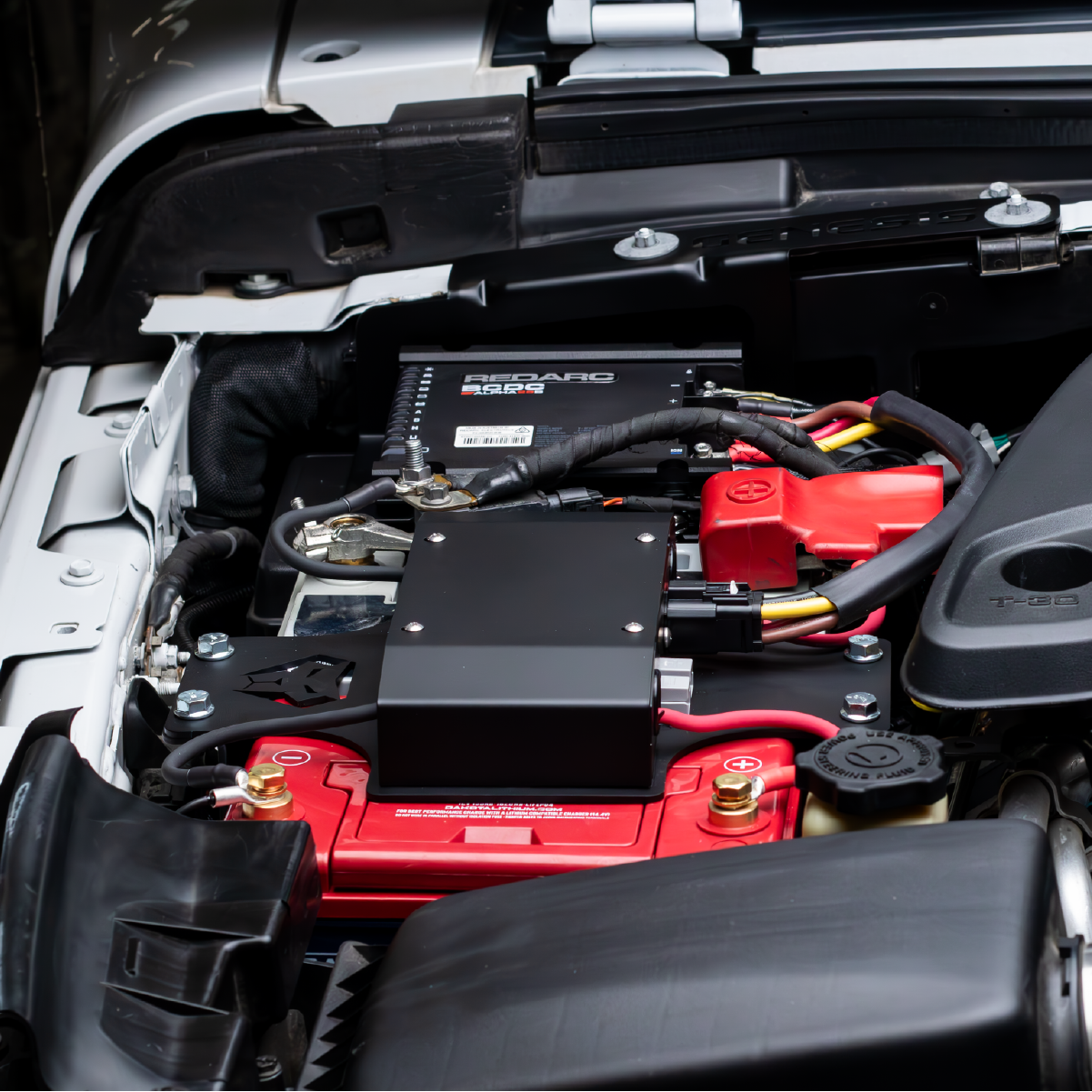
Get familiar with every component before you install. The same guide ships in the box.
Tap or hover the numbered points to learn each component

Watch & Learn
Two quick videos: what your Juicebox can do, and how to install it.
Juicebox 100 Overview
What the Juicebox 100 is, what is inside, what it can power, and why it beats a portable power station.
Installation Walkthrough
Follow along with a complete install in a Ram truck — the process is the same in every vehicle, with helpful tips along the way.
Download the Apps
Your Juicebox 100 is controlled by two free REDARC apps: RedVision for everyday monitoring and control, and Configurator for setup and settings.

RedVision by REDARC
Monitor and control your system from your phone — check battery level, state of charge and charge rates, switch outputs like lights and pumps on or off, and view tank levels and temperatures.

RedVision Configurator
Set up and customize your system over Bluetooth — adjust charger profiles, set low-battery alarms, configure tank and temperature sensors, and choose what your display and buttons control.
Configure & Calibrate
Once the apps are installed, this walkthrough gets your charger dialed in and your battery monitor calibrated.
Full App Setup Walkthrough
Shane and Brad walk through the complete setup of both REDARC apps on the Juicebox 100:
- Connect the Configurator app to the Alpha25 charger
- Set battery type, size, and max charge current
- Set a low-voltage alarm
- Read your live data in the RedVision app
- Calibrate the Smart Shunt at 100% charge
Tip: open the video on YouTube for chapter timestamps that jump straight to each individual setting.